Now on the Mac App Store
Find the screenshot
you know you took.
Bunny reads every capture on your Mac — then you just search what you remember.

macOS 26+ · Apple silicon
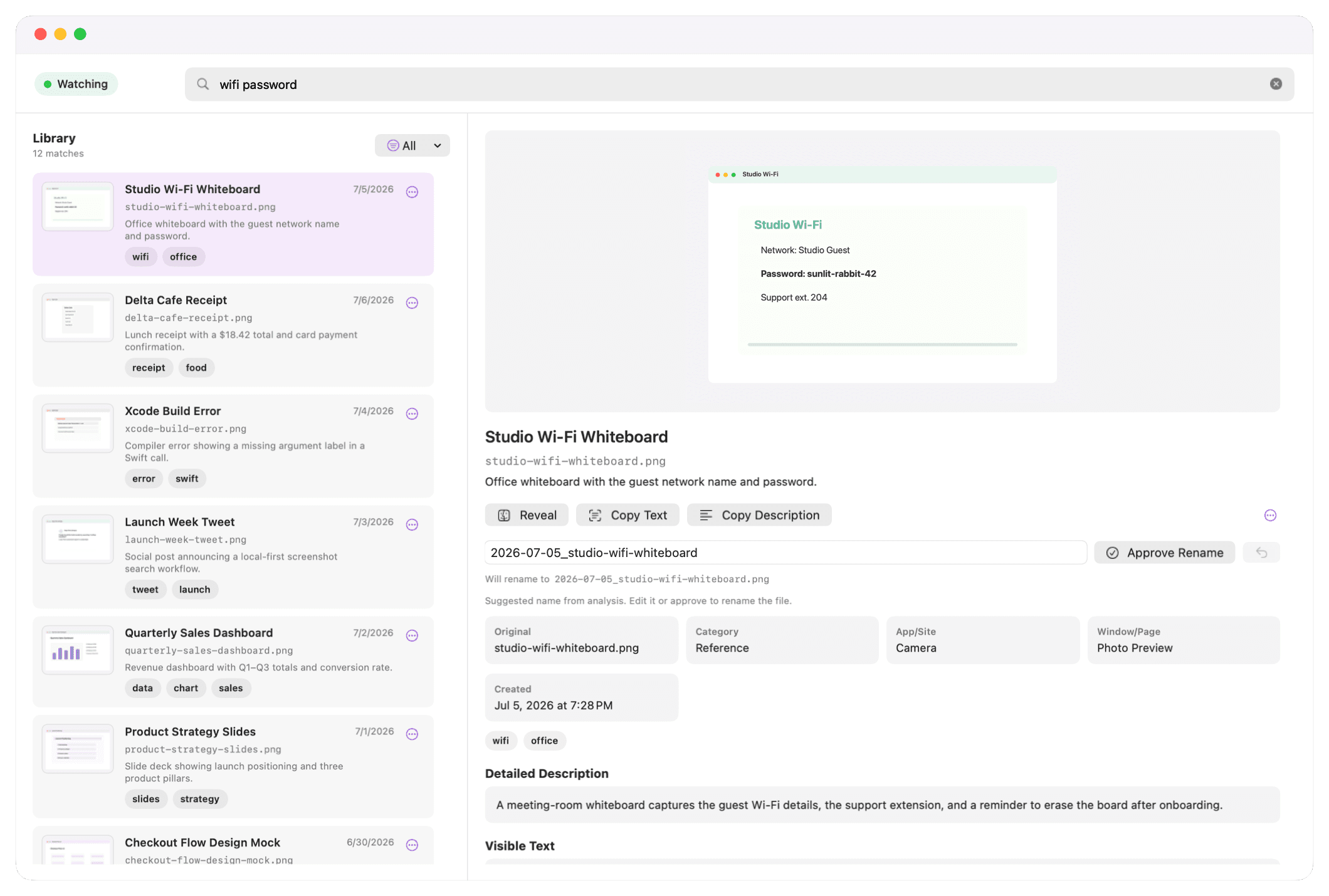
What you have now

What Bunny gives you
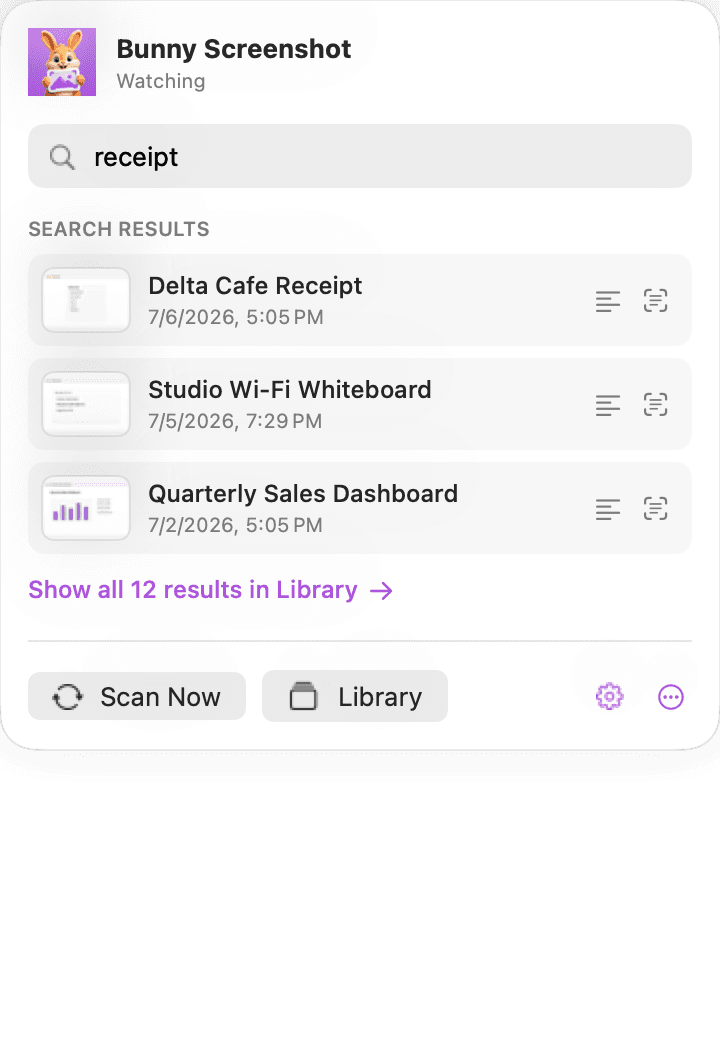
Search by content
Search what’s inside them.
Not what they’re named.
Bunny reads the text and understands the content of every capture — the error, the total, the name on the badge — and indexes all of it. Type what you remember; Bunny fetches the exact one.
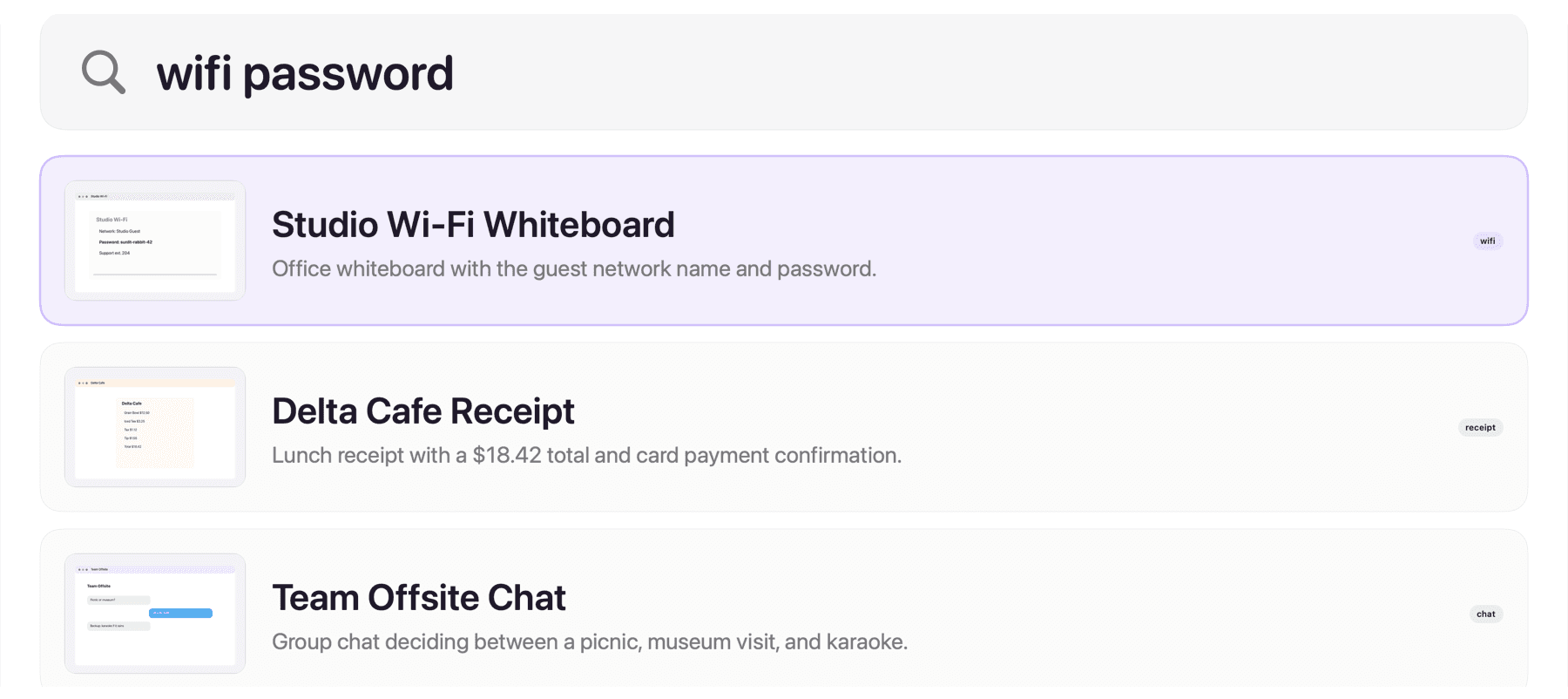
Tags & categories
Tagged and filed — automatically.
Bunny tags the details it finds inside each capture, and — when you turn it on — files every screenshot into a category subfolder. Tags and folders are yours: rename, retag, or recategorize anytime, and every move is reversible.
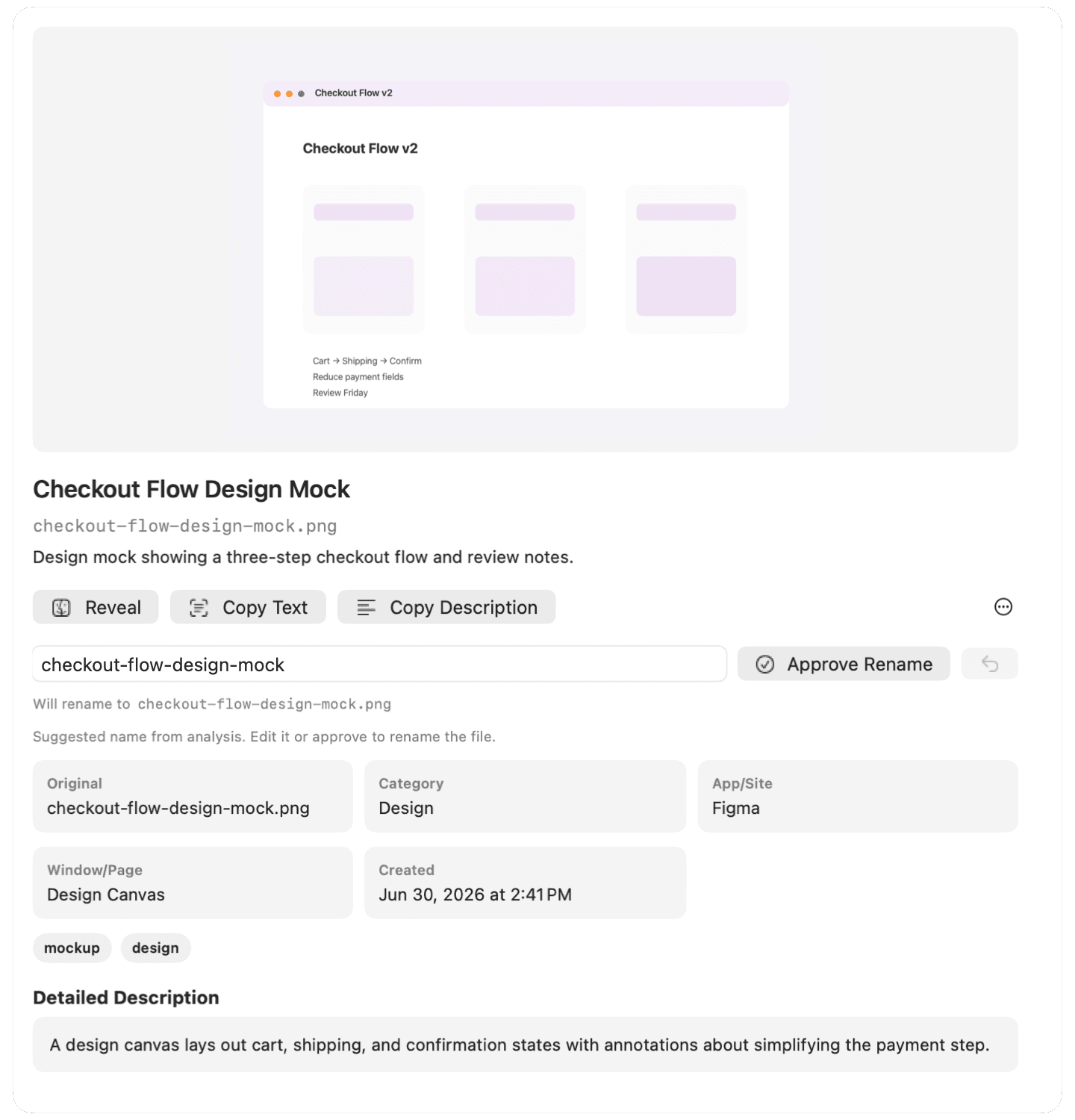
Everything it does
Small app. Complete toolkit.
Every capture becomes something you can find, trust, and reuse — without giving up an ounce of privacy.
16 tools · 1 menu-bar icon · 0 accounts
Search by content
Type what you remember — the error, the total, the name on the badge. Bunny fetches the exact capture.
Reads every word
The text in each screenshot is extracted and indexed. Copy it out — even as Markdown — whenever you need it.
AI titles & descriptions
“Screenshot 2026-07-05…” becomes “Studio Wi-Fi Whiteboard” — a real name and a searchable description.
Tags what it finds
Receipt, error, boarding pass — details inside become tags. Retag or rename them anytime.
Sorts into categories
Captures sort into categories — rename, merge, or reassign anytime. Real-folder auto-filing: coming soon.
Your choice of model
Fast local, accurate local, or your own OpenAI key. Switch engines anytime.
Shows up in Spotlight
Your screenshots show up in Spotlight — titles and text join the system index. It’s a toggle.
Renames need your OK
Renames are suggestions you approve. Nothing on disk changes without you.
Follows your files
Rename or move a capture in Finder and Bunny keeps its title, tags, and history attached. Nothing gets orphaned.
A paper trail, live
Every change recorded and timestamped, renames one-click reversible. A live timeline shows what ran and why.
Never deletes anything
Bunny never deletes your screenshots, and analysis stays on your Mac unless you choose to bring your own OpenAI key. Worst case: nothing happened.
Hides sensitive captures
Flagged-sensitive screenshots stay out of search — in the app and in Spotlight. A filter keeps them findable when you want.
You pick the folders
Bunny only watches folders you choose — macOS asks for your approval, once per folder.
Lives in the menu bar
Bunny waits quietly next to the clock and notices each new capture as it lands.
MCP built in
Your AI agents can search your library — off by default, localhost-only, authenticated.
中文支持
The whole app runs in Simplified Chinese — built in, not bolted on.
How it works
Three steps. Then it just runs.
Watch
Point Bunny at the folders where screenshots land. It waits quietly in the menu bar and notices each new capture.
Understand
A vision model reads each one — a title, a description, the visible text, and tags. Cloud with your key, or fully on-device.
Find
Search by what’s inside, from the menu bar, the Library window, or macOS Spotlight. Your agents can search it too.
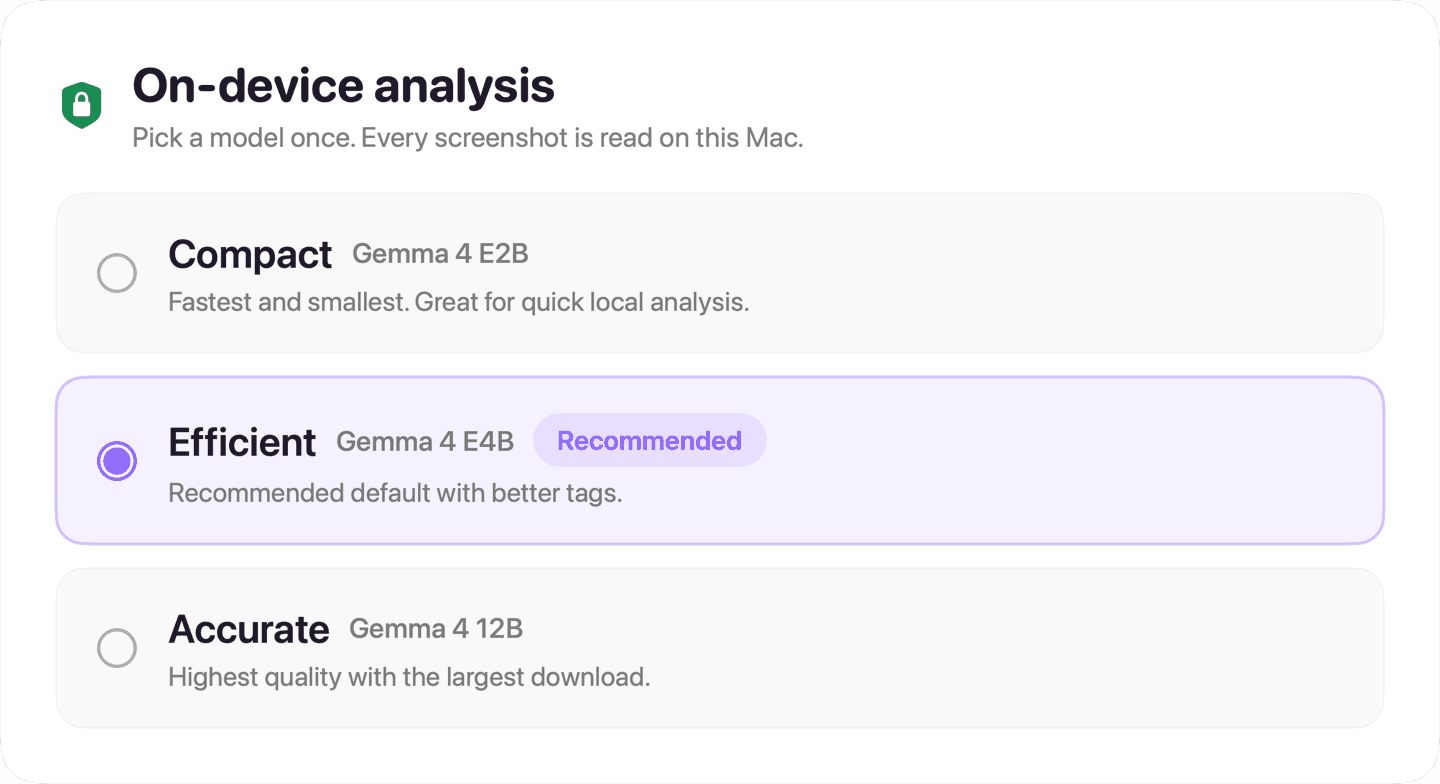
localhost · no accounts · no analytics
Local-first, on principle.
Metadata, search, and the audit log live in a local database on your Mac — there is no Bunny cloud.
Cloud analysis uses your own OpenAI key, only after explicit consent. Or download a local model and unplug entirely.
No accounts, no analytics, no tracking — the only network calls are the ones you choose.
MCP built in
# your agent, mid-task
search_screenshots("stripe invoice")
✓ 3 results · 0.4s · local
Your agents get a search tool. Your data stays home.
Pricing
Start free. Go Pro once.
Free
The complete toolkit. Yours forever.
- Every capture analyzed on your Mac — titles, descriptions, extracted text
- Browse your entire library — no limits, ever
- Search your 50 most recent screenshots
- 10 custom tags · 5 custom categories
- Fast on-device model, or bring your own OpenAI key
- Spotlight, audit log, sensitive-capture protection — everything in the feature grid
- MCP agent search built in
Bunny Pro
PROYours for life · no subscription
Give Bunny the power to reach everything.
- Search your whole library — not just the latest 50
- Unlimited tags and categories
- The Accurate model — the largest, sharpest on-device AI
- The full MCP agent toolkit — agents can read details, list recents, retag, and rename
- All future updates included — never pay again
- Unlocks instantly in the app; restores on any of your Macs
Used Bunny Screenshot before v1.2? You keep every feature, free — thanks for being an early bunny. 🐰
$19.99 is the US price; the App Store shows your local price. Purchase handled by Apple — no account with us, everything stays on your Mac.
Mac screenshot guides
Straight answers to the questions people arrive with — the built-in shortcuts first, and where an organizer actually helps.
macOS has no app called Snipping Tool. The equivalent is built into the keyboard: press ⇧ Shift ⌘ Cmd 4 and drag to…
By default, macOS saves screenshots to your Desktop as PNG files named for the moment you took them — for example “S…
You do not need an OCR app for one screenshot. Open it in Preview or press Space for Quick Look, then select the tex…
It depends which half of the problem you have. CleanShot X is built around taking and marking up captures — annotati…
Questions, answered
Do I need an OpenAI account?+
Only for the cloud engine, where you bring your own API key. The on-device engine needs no account and no key — it runs a downloadable local model (≈6 GB, removable anytime) on Apple silicon.
Where does my data live?+
On your Mac. The index, metadata, and audit log are local. With the on-device engine, analysis is local too. There is no Bunny cloud and no analytics.
Can it find screenshots from Spotlight?+
Yes — analyzed titles, descriptions, and visible text are added to the macOS Spotlight index on your device, so Cmd-Space finds your screenshots. It’s a toggle, and turning it off removes the entries.
Will it rename or move my files?+
Only when you ask it to. Renames are suggestions you approve, and auto-filing into category subfolders is off by default — turn it on and Bunny sorts new captures into folders, with every move reversible. Nothing is ever deleted or uploaded.
What about my AI tools?+
An optional local MCP server (off by default, localhost-only, authenticated) lets your agents search your screenshot library — your data stays on your machine.

Give your screenshots a memory.
Bunny Screenshot is now on the Mac App Store. Quietly indexing, fully private, ready when you are.